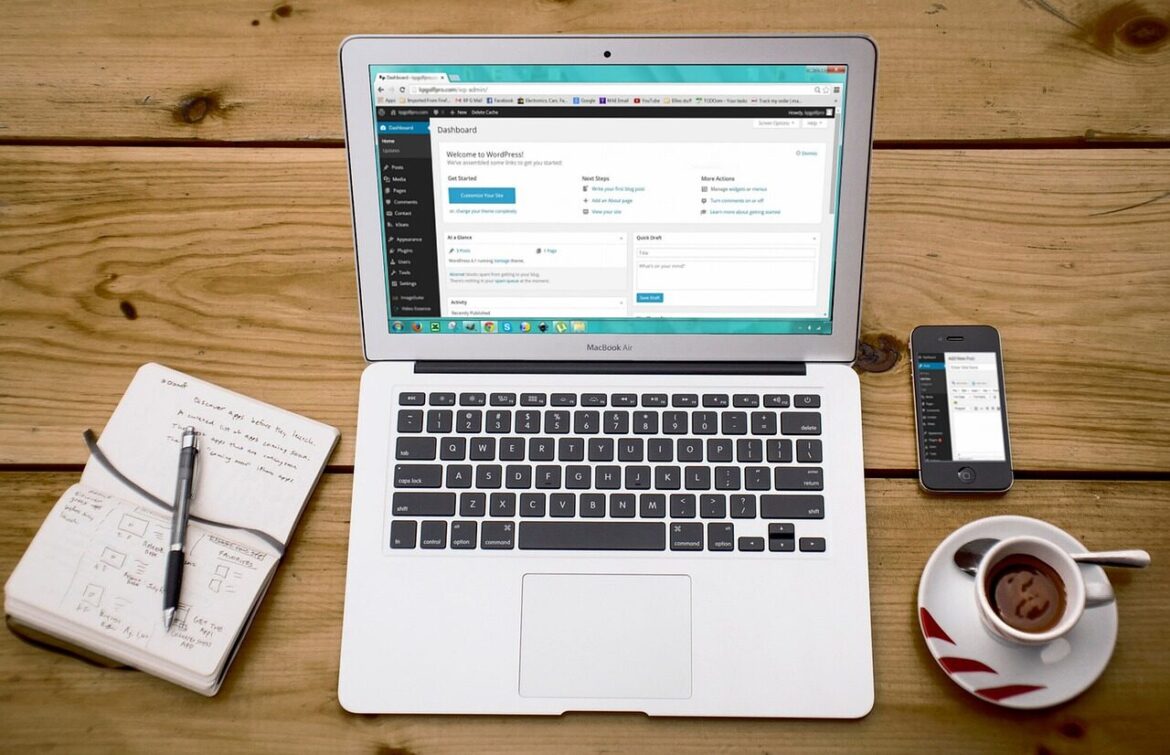
Creating a standout portfolio website can open doors to new opportunities and showcase what I do best. With WordPress, I don’t need to be a coding expert to build a site that reflects my unique style and skills. It’s one of the most popular platforms for a reason—it’s flexible, user-friendly, and packed with features perfect for portfolios.
I know how overwhelming it can feel to start from scratch. That’s why I’m breaking down the process into simple steps anyone can follow. Whether I’m a designer, photographer, writer, or freelancer in any field, building a professional portfolio site is within reach. Let’s dive in and turn my work into an online presence that gets noticed.
Why Build a Portfolio Website with WordPress
WordPress offers a user-friendly interface that streamlines the portfolio website creation process. I customize layouts, colors, and features using a wide range of themes and plugins, eliminating the need for coding knowledge. Low setup costs make WordPress accessible for freelancers, designers, and photographers who want a professional site quickly.
Templates and drag-and-drop editors simplify site foundational tasks. Responsive themes ensure that my portfolio appears polished on any device, meeting current digital expectations. I optimize images, use modern galleries, and share multimedia content, showcasing my projects with high visual impact.
Security updates and a large support community provide peace of mind. WordPress sites integrate with professional tools like contact forms, social media feeds, and analytics, allowing me to track visitors and generate leads. Regular updates from developers keep my site compatible with SEO standards and changing web requirements.
I control my content and brand identity, presenting my creative work exactly as intended. Open-source flexibility means I adapt my site as my portfolio grows or as industry trends shift, maintaining a competitive online presence at every stage of my career.
Planning Your Portfolio Website
Smart planning lays the foundation for a strong portfolio website that matches my goals and connects with my ideal clients or employers. I set clear objectives and select a theme designed for showcasing creative work to help my site stand out in a crowded digital space.
Defining Your Goals and Audience
I clarify my website’s core objective, whether that’s landing freelance projects, attracting full-time opportunities, or presenting a gallery of creative work. I pinpoint my target audience by researching what potential clients or employers want in design, usability, and content. This approach allows me to customize visuals, navigation, and copy for specific groups, like art directors or HR managers, improving their engagement and increasing my chances of being noticed.
Choosing the Right WordPress Theme
I pick a WordPress theme specialized for portfolios that loads quickly, adapts to phones and tablets, and lets me customize details without fuss. Top recommendations like Astra, OceanWP, Kadence, and Perfect Portfolio each offer clean gallery layouts, strong navigation, and simple setup. By using Appearance > Themes > Add New Theme, I browse, install, and activate my choice. I focus on visual appeal and fast performance to make sure my work looks great and loads smoothly for all users.
Setting Up WordPress
Setting up WordPress creates the foundation for my portfolio website. I complete this step before designing, customizing, or adding my creative work.
Selecting a Domain Name and Hosting
Selecting a domain and hosting provider links my brand with my online presence. I register a professional domain name using reputable services like GoDaddy, usually choosing names that match my brand or full name for better recognition. I prefer hosting providers optimized for WordPress—examples include Bluehost, SiteGround, and GoDaddy Managed WordPress Hosting. Managed WordPress hosting options often include daily site backups, reliable security, and one-click installs, streamlining setup and reducing technical hassle. After my domain registration, I connect it to my chosen WordPress host so my site appears live on the web.
Installing WordPress
Installing WordPress is straightforward with most modern hosting providers. I access my hosting control panel, locating the “WordPress” or “Website Installer” section for a one-click installation. If I choose managed hosting, WordPress usually comes pre-installed, saving me time. During the installation, I select my registered domain, set up an admin username, and create a secure password. Once installed, I log in at mysite.com/wp-admin and access the dashboard. This gives me control over site themes, structure, and content management as I begin customizing my portfolio on the WordPress platform.
Customizing Your Portfolio Website
Customizing my WordPress portfolio lets me control how I showcase my work and build credibility. I focus on making my site visually cohesive and user-friendly, reinforcing my professional identity with every design choice.
Installing and Customizing Your Theme
I start by selecting a portfolio-optimized WordPress theme like Divi or Neve. These themes include built-in layouts for creative work, compatibility with modern page builders, and responsive design. After installing my theme from the Appearance > Themes menu, I customize site details—header, logo, fonts, and colors—using the WordPress Editor or Customizer. By editing page templates, I ensure branding elements, such as button styles and accent colors, match my niche. I create essential pages: Portfolio, About Me, and Contact. For themes that don’t provide portfolio layouts, I enable these in Settings > Writing > Content Types and switch on “Portfolio Projects”. I then add projects with images, client details, and project descriptions via Portfolio > Add New. I display these projects using a [portfolio] shortcode or a gallery block, so visitors see my best work up front.
Adding Essential Plugins
I extend my portfolio site’s functionality with plugins tailored for creative professionals. I install a contact form tool like WPForms to streamline inquiries, an SEO solution such as Yoast SEO to boost discoverability, and a caching plugin for site speed. I rely on security plugins to protect project files and user data. For design flexibility, I use page builder plugins or AI design companions like Divi AI, letting me adjust page layouts easily. I keep my plugin list focused to maintain fast load times and prevent theme conflicts, only choosing tools that directly support my goals—showcasing work, attracting leads, and building a professional reputation.
Creating Portfolio Content
Building strong portfolio content on my WordPress website highlights my expertise and drives engagement from potential clients or employers. I focus on presenting each project with clarity, visual appeal, and narrative depth.
Adding Projects and Case Studies
I create individual project entries, assigning each its own page or post. Every project page features high-resolution visuals like images or videos, plus descriptive captions to clarify context. For each case study, I outline the project’s objective, detail my role, describe challenges faced, and summarize the outcomes achieved. I use a consistent layout—such as standardized titles, timelines, and media placements—so visitors can navigate my work easily. I also collect client testimonials or feedback for relevant projects to strengthen credibility. When possible, I maintain a blog or updates section to share recent activities, adding freshness and relevance to my portfolio.
Showcasing Skills and Services
I dedicate a prominent section to list my professional skills, using clear categories—like web design, branding, or photography—with supporting examples from my portfolio. I describe the services I offer, matching them to industry-standard terms. On my “About Me” page, I summarize my background, strengths, and key values to build trust. Every service or skills area includes a call to action, inviting visitors to get in touch or request a quote. I ensure my content is mobile-friendly and easy to scan, optimizing contact information so visitors can reach me without friction. This approach keeps my portfolio site user-focused and positions my capabilities prominently.
Optimizing for Performance and SEO
A portfolio website that’s fast and search-friendly brings in more visitors and creates a stronger first impression. I’ve outlined core strategies to maximize both speed and SEO benefits on WordPress.
Enhancing Website Speed
I boost load times by using a lightweight, mobile-responsive theme designed specifically for portfolios. I keep plugins to a minimum—just the essentials like image optimization or caching—to prevent bloated code. For better performance, I defer non-critical JavaScript and inline only the critical CSS using optimization plugins such as WP Rocket or Asset CleanUp. I compress images and convert them to modern formats like WebP before uploading for further speed gains. I activate lazy loading so images only appear when they’re needed on the page. I often use a Content Delivery Network (CDN) for faster global content delivery, and, if needed, I upgrade my hosting to improve response times immediately.
Implementing Basic SEO Practices
I rely on an SEO plugin like Yoast SEO to manage meta tags and automated XML sitemaps. I always use clean URL structures (permalinks) for better indexing and user experience. My project pages and blog posts get keyword-focused, high-quality content describing services and showcasing results. I give every image a descriptive filename and SEO-focused alt text for accessibility and ranking. I interlink related portfolio pieces and blog articles to help search engines discover all site content. I organize work with categories and tags, and I make sure search engines can index the site without duplicating content. This approach creates a solid foundation for search visibility and strong site usability.
Launching and Promoting Your Website
I focus on getting every detail right before showing my portfolio to the world, and I use proven tactics to drive targeted visitors and increase visibility.
Testing Before Launch
I preview every page to confirm alignment with my brand’s design and content goals. I test navigation by clicking each menu button—including Contact and Portfolio links—to verify accuracy and responsiveness across desktop, tablet, and mobile devices. I check that all portfolio visuals load fast and display correctly, with clear descriptions and easy-to-read captions. I test every contact form by submitting sample entries, confirming messages arrive securely. I enable security plugins and activate my hosting provider’s built-in tools to guard against threats. I back up my site before launch for extra protection against unexpected issues.
Promoting Your Portfolio Online
I add my website link to my profiles on social media platforms where potential clients or collaborators spend time—examples include LinkedIn, Instagram, and design forums. I apply on-page SEO best practices using plugins, keyword-rich descriptions, and optimized titles to improve search rankings. I share my portfolio in online communities related to my expertise, including web forums and industry groups. I launch an email campaign to introduce my updated work to previous clients and contacts. I regularly upload new projects and blog about recent achievements, keeping my content fresh and engaging for both new and returning visitors.
Conclusion
Building a portfolio website with WordPress truly opens doors for creatives and professionals looking to stand out online. With the right planning and a clear vision of what I want to achieve, I can craft a site that not only looks great but also works hard for my career.
By focusing on both design and functionality, I’m able to present my best work and connect with the right audience. Staying proactive with updates and promotion keeps my portfolio fresh and competitive, ensuring I’m always ready for new opportunities.
Frequently Asked Questions
Why should I use WordPress for my portfolio website?
WordPress is user-friendly, requires no coding, and offers customizable themes and plugins. It’s affordable, scalable, and flexible, making it ideal for creatives who want a professional, easy-to-update portfolio site.
What features should my portfolio website include?
Your portfolio should have key pages like Home, Portfolio (for your work), About Me, and Contact. Adding client testimonials, case studies, and a blog section can help showcase your skills and keep visitors engaged.
How do I choose the right WordPress theme for my portfolio?
Select a theme optimized for portfolios, such as Astra, OceanWP, Kadence, or Perfect Portfolio. Look for themes that are fast, mobile-friendly, visually appealing, and easy to customize without coding.
What are the initial steps to set up my WordPress site?
Start by registering a professional domain name and choosing a reliable hosting provider. Then, install WordPress, select a suitable theme, and customize the basic settings before adding your content.
How can I make my portfolio more engaging?
Use high-quality images, descriptive project captions, and visual layouts. Include detailed case studies, and showcase your skills, testimonials, and an engaging “About Me” page to build trust and connect with visitors.
What plugins are essential for a portfolio site?
Install only necessary plugins to keep your site fast. Key plugins include a SEO tool (like Yoast SEO), a contact form, image optimization tools, and security plugins to protect your content.
How do I optimize my WordPress portfolio for SEO?
Use SEO plugins to manage meta tags and sitemaps, optimize images with alt text, and write keyword-rich content. Keep URL structures clean, interlink relevant pages, and organize projects with tags and categories.
How can I ensure my portfolio website loads quickly?
Choose lightweight themes, minimize unnecessary plugins, optimize images, and use caching plugins. Consider a content delivery network (CDN) and reliable hosting to further boost site speed.
How do I promote my portfolio after launch?
Share your site on social media, engage in relevant online communities, send email updates to previous clients, and regularly update your content. Apply on-page SEO best practices to improve visibility in search engines.
How often should I update my portfolio website?
Regularly adding new projects, blog posts, or testimonials keeps your portfolio fresh and relevant. Update your content at least every few months to reflect your latest work and skills.
Leave a Reply